728x90
반응형
1. 서론
"사진은 마음에 드는데 배경이 별로인가요? 모델 손에 들린 커피를 최신 아이폰으로 바꾸고 싶으신가요? 이제 프롬프트 한 줄이면 충분합니다."
이미지를 생성하다 보면 "다 좋은데 이것만 없었으면..." 혹은 "여기에 이것만 추가되면 완벽할 텐데" 하는 아쉬움이 남을 때가 있습니다. 예전에는 복잡한 편집 툴을 배워야 했지만, 이제는 AI의 '수정(Edit)' 기능을 활용해 말 한마디로 사진을 재창조할 수 있습니다.
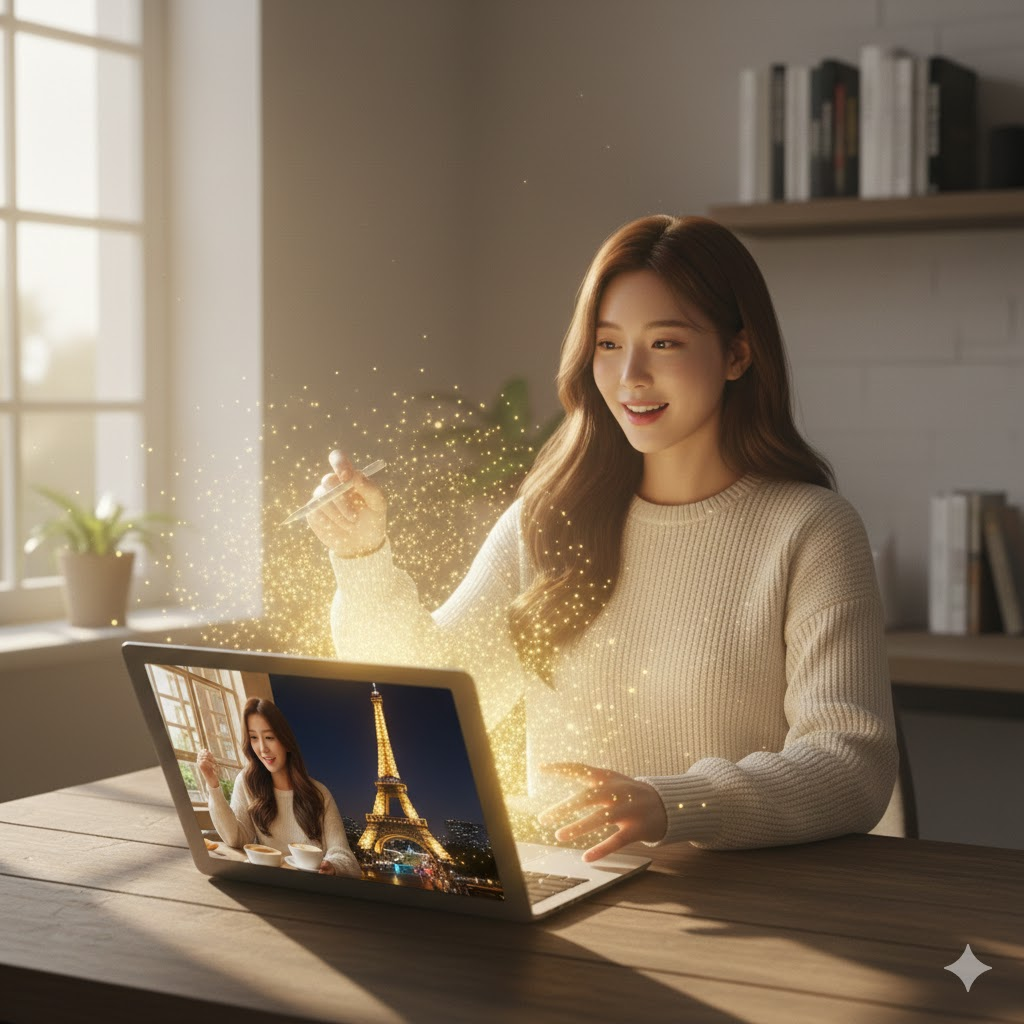
오늘은 인스타 감성 사진의 완성도를 높여줄 '부분 수정 및 개체 추가' 실전 프롬프트 40선을 공개합니다!
반응형
2. 부분 수정 & 개체 추가 AI 프롬프트 레시피 (Total 10 Themes)
💡 활용 팁: 이미지 생성 툴의 'Edit' 또는 'Inpainting' 모드에서 수정하고 싶은 영역을 칠한 뒤 아래 프롬프트를 입력하세요.
1. 배경 교체 (공간의 분위기를 한 번에)
- (도심 배경으로): Change the background to a blurred high-end Seoul city view at night with bokeh lights
- (숲속 배경으로): Replace the background with a serene green forest with soft sunlight filtering through leaves
- (바다 배경으로): Change the background to a calm turquoise ocean beach at sunset
- (미니멀 스튜디오): Modify the background to a clean, minimalist white studio with soft shadows
2. 소품 교체: 음료 & 디저트 (카페 콘텐츠용)
- (커피를 에이드로): Change the coffee cup to a colorful iced lemon sparkling ade with mint leaves
- (디저트 추가): Add a small plate of colorful macarons next to the drink
- (와인잔으로 교체): Replace the mug with a luxury crystal wine glass filled with red wine
- (라떼아트 수정): Change the latte art to a cute cat-shaped foam art
3. IT 기기 & 업무 소품 (자기계발용)
- (노트북 브랜드 변경): Replace the laptop with a latest sleek silver high-end laptop with a glowing logo
- (다이어리 추가): Add a premium leather-bound daily planner and a fountain pen on the table
- (태블릿으로 교체): Replace the open book with a modern tablet displaying a colorful digital painting
- (스탠드 조명 추가): Add a stylish minimalist gold desk lamp on the corner of the table
반응형
4. 의상 색상 및 재질 변경 (패션 콘텐츠용)
- (셔츠 색상 변경): Change the color of the shirt to a vibrant emerald green silk material
- (상의를 니트로): Modify the top to a cozy oversized beige cable-knit sweater
- (재킷 추가): Add a classic black leather biker jacket over the current outfit
- (무늬 추가): Add a subtle floral pattern to the plain white dress
5. 계절감 입히기 (시즌 마케팅용)
- (눈 내리는 효과): Add soft falling snow and a light frost effect to the window and background
- (단풍 분위기): Change the green leaves in the background to warm orange and red autumn maple leaves
- (벚꽃 추가): Add fluttering pink cherry blossom petals scattered around the subject
- (크리스마스 장식): Add a small decorated Christmas tree and warm fairy lights in the background
6. 액세서리 추가 (인물 디테일링)
- (안경 착용): Add stylish thin-framed gold glasses to the person’s face
- (시계 추가): Add a luxury silver analog watch to the person's left wrist
- (귀걸이 추가): Add elegant pearl drop earrings to the person
- (모자 착용): Add a trendy beige beret on the person's head
반응형
7. 빛과 조명 효과 (무드 조절)
- (노을빛 추가): Add a strong golden hour sunset glow coming from the right side
- (네온 조명): Add a subtle pink and blue neon light reflection on the subject's face
- (무지개 효과): Add a faint, beautiful rainbow arc in the sky background
- (그림자 연출): Add aesthetic leaf shadows cast over the table and the subject
8. 테이블 위 꽃과 식물 (생동감 추가)
- (꽃병 추가): Add a small glass vase with a single red tulip on the table
- (화분 배치): Add a medium-sized Monstera plant pot in the empty corner of the room
- (장미 꽃다발): Add a large bouquet of fresh pink roses held in the person's arms
- (유칼립투스): Add a small eucalyptus branch laying next to the coffee cup
9. 가구 및 인테리어 수정 (공간 브랜딩)
- (의자 교체): Replace the wooden chair with a modern designer velvet armchair in navy blue
- (벽지 변경): Change the plain wall to a dark grey concrete texture wall
- (액자 추가): Add a large abstract modern art painting on the wall behind the person
- (커튼 추가): Add soft, sheer white lace curtains to the window
반응형
10. 불필요한 요소 제거 (클린업)
- (사람 지우기): Remove all people in the background and fill with a clean scenery
- (잡동사니 제거): Remove the messy wires and trash on the floor, making it perfectly clean
- (로고 지우기): Remove any text or brand logos from the clothing and make it plain
- (음식 흔적 지우기): Remove the crumbs on the plate and make it look fresh
* 실무자를 위한 '수정 성공률 200%' 꿀팁
- 영역 설정이 핵심: 수정하고 싶은 부분보다 아주 살짝 더 넓게 영역을 지정해야 경계선이 자연스럽게 합성됩니다.
- 단순하게 명령하기: 배경을 바꿀 때는 Change background to..., 물체를 넣을 때는 Add..., 뺄 때는 Remove... 처럼 명확한 동사를 쓰세요.
- 일관성 유지: Maintaining the same lighting and style이라는 문구를 프롬프트 뒤에 붙여주면 기존 사진과 이질감 없이 수정됩니다.
3. 결론
이제 완벽한 사진을 찍기 위해 수백 번 셔터를 누를 필요가 없습니다. 어느 정도 마음에 드는 이미지가 나왔다면, 오늘 배운 '마법의 지우개' 전략으로 나만의 완벽한 컷을 완성해 보세요.

728x90
'생성형 AI > 생성형 AI의 활용' 카테고리의 다른 글
| 초상권 걱정 없는 AI 가상 모델 생성 및 활용법 (0) | 2026.02.04 |
|---|---|
| AI로 SNS용 감성 배경 이미지 10초 만에 뽑기 (0) | 2026.02.04 |
| AI 프롬프트 예시4-4, 나의 AI 자산을 구축하기 위한 “프롬프트 라이브러리” (0) | 2026.02.01 |
| AI 프롬프트 예시4-3, 나의 강점을 시각화 하기 위한 “포트폴리오 프롬프트 (0) | 2026.02.01 |
| AI 프롬프트 예시4-2, AI 모의 면접을 위한 “면접 프롬프트” (0) | 2026.02.01 |